How to make Fortnite clips vertical for TikTok
Widescreen gameplay does not fit a phone screen. Here is what actually happens when you crop it, and how to keep the parts of the HUD that make a clip readable.
The short version
A Fortnite clip is recorded wide. TikTok, Reels and Shorts are tall. Something has to give, and in most editors what gives is the edges of the frame, which is exactly where Fortnite puts your minimap, your health and shield bars, and your weapon slots.
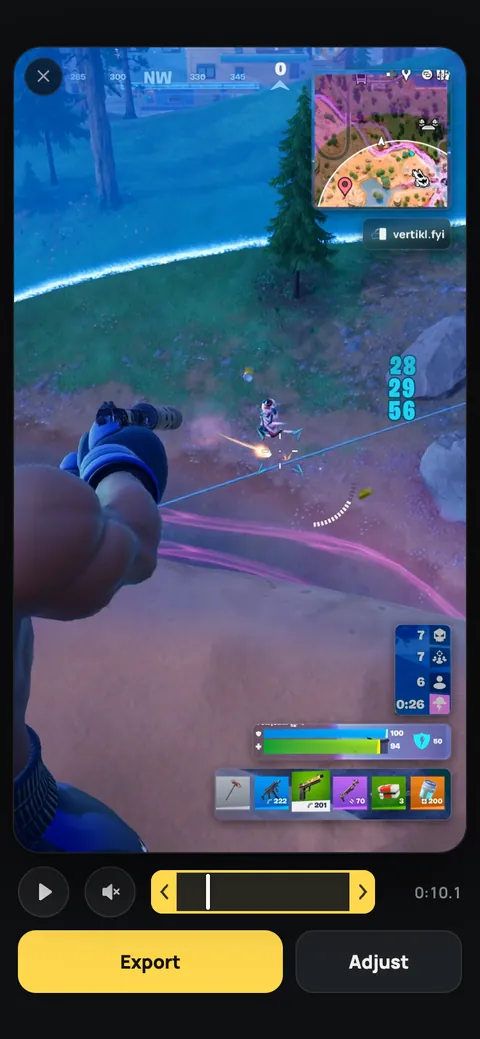
You have three real options. Crop and lose them. Shrink the whole frame into a letterboxed strip and make the gameplay tiny. Or cut the action out and put the corner pieces back on top of it, which is what Vertikl does automatically.
What you need before you start
- A widescreen clip. Either 16:9 (most consoles, most PC captures) or 21:9 ultrawide. Both work.
- 720p or better. The vertical output is 1080x1920, so anything below 720p is being asked to grow rather than shrink and it will look soft.
- An MP4, MOV or MKV, up to 600 MB. That is roughly two to four minutes of 1080p60 gameplay, depending on your capture bitrate. If your clip is longer, trim it first. Shorter clips also upload faster, and upload is most of the wait.
Step by step
- Get the clip onto the device you will upload from. If it is sitting on a console, this is the part that takes the longest. There is a separate guide for that below.
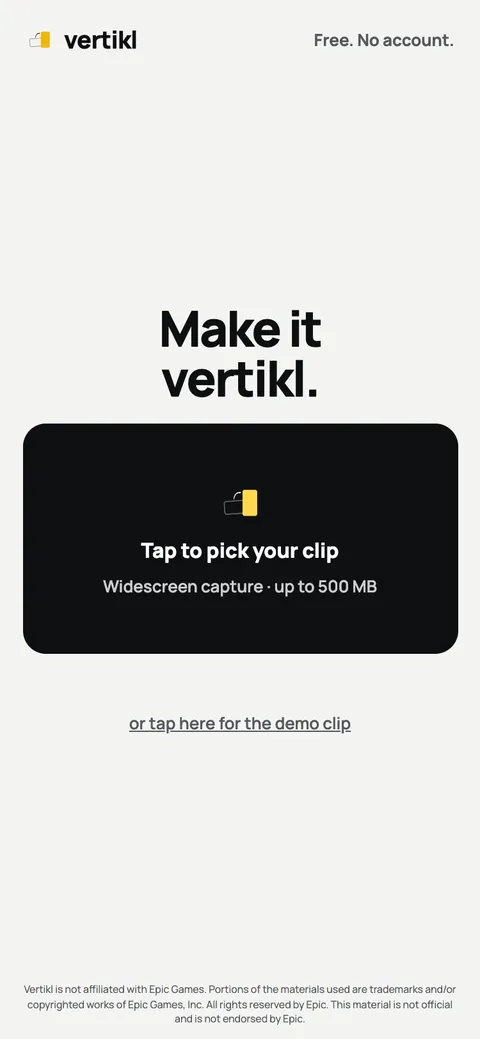
- Open the converter and drop the file in. No account, nothing to install. It reads the clip and finds the minimap, the health and shield bars, and the weapon slots.
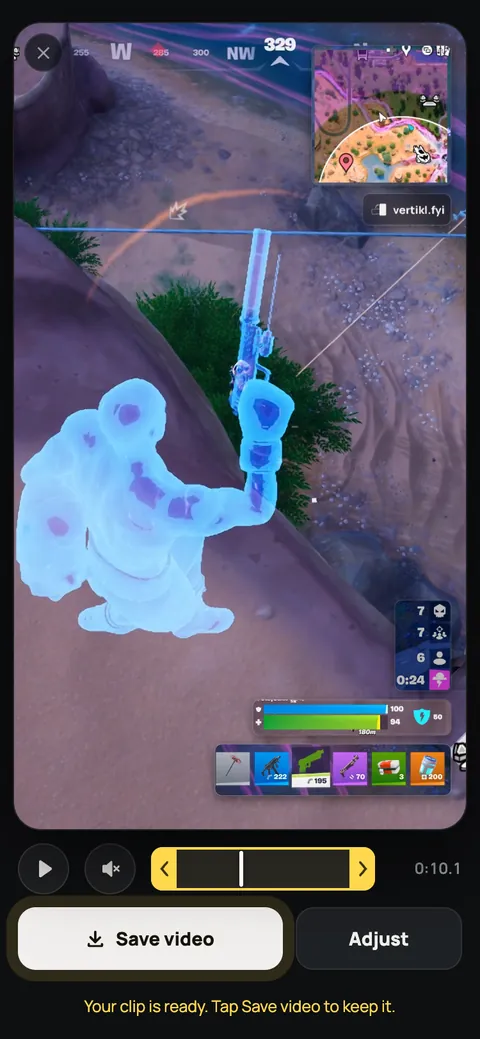
- Check what it found. You get a preview of the vertical frame with those pieces placed on it. If something sits where you do not want it, move it.
- Trim to the part you actually care about. A kill is worth about seven seconds. The forty seconds of running before it is not, and trimming before export makes everything faster.
- Export and save. You get a 1080x1920 MP4. On a phone the save button hands it to the normal share sheet, so you can put it straight into Photos.
On the watermark. Exports carry a small Vertikl mark in the corner. It is deliberately out of the way and it is how a free tool with no account and no ads gets found by the next person.
What about doing it by hand in CapCut or DaVinci?
You can, and if you only ever post one clip it is not worth learning a second tool. The work is: set a 9:16 canvas, drop the clip in, scale and position the action, then separately crop out the minimap and each bar you want to keep, scale each one, and place it. That is four or five extra layers, positioned by eye, and you redo all of it for the next clip because the elements move depending on your resolution and what mode you were playing.
The reason to automate it is not that it is impossible by hand. It is that it is the same fiddly ten minutes every single time.
Common mistakes
Exporting at 60fps when you filmed at 120
Frame rate conversion from 120 to 60 is clean because it is an exact halving, every second frame is simply dropped. Going from 120 to 30 is also clean. Awkward ratios like 120 to 50 are not, and they produce a subtle stutter that is very visible on a fast pan. If you have the choice, land on a frame rate that divides evenly into your capture rate.
Uploading the whole match
Upload time scales with file size, and your home connection uploads far slower than it downloads. A four minute clip is not four times slower to work with than a one minute clip, it is four times slower to upload, which is the part you actually sit and wait for. Trim first.
Letterboxing the whole widescreen frame
Putting the full 16:9 frame in the middle of a 9:16 canvas with black or blurred bars above and below keeps everything on screen, which sounds like the safe answer. It is not, because the gameplay ends up occupying about a third of the height of a phone screen, and detail that was already small at full size becomes unreadable. Vertical platforms also tend to reward footage that fills the frame.
Try it on one of your clips
Free, in the browser, no account. Drop a clip and see what it keeps.
Convert a clip