 vertikl
Try it free
vertikl
Try it free
Post a Fortnite clip from your PC
Find the clip your NVIDIA app or OBS saved. Open Vertikl in your PC's browser and make it vertical. Then post it.
Save the clip
- NVIDIA app: with Instant Replay on, press Alt+Shift+F10 after a good moment. The app saves a clip.
- OBS Studio: turn on the Replay Buffer in Settings, Output, and set a key to save it in Settings, Hotkeys. Start the Replay Buffer before you play. After a good moment, press your save key.
Make it vertical on your PC
- Find the file. In the NVIDIA app, press Alt+Z and open the Gallery. In OBS, the folder is the Recording Path in Settings, Output.
- Open Vertikl in your PC's browser and drop the file on the page.
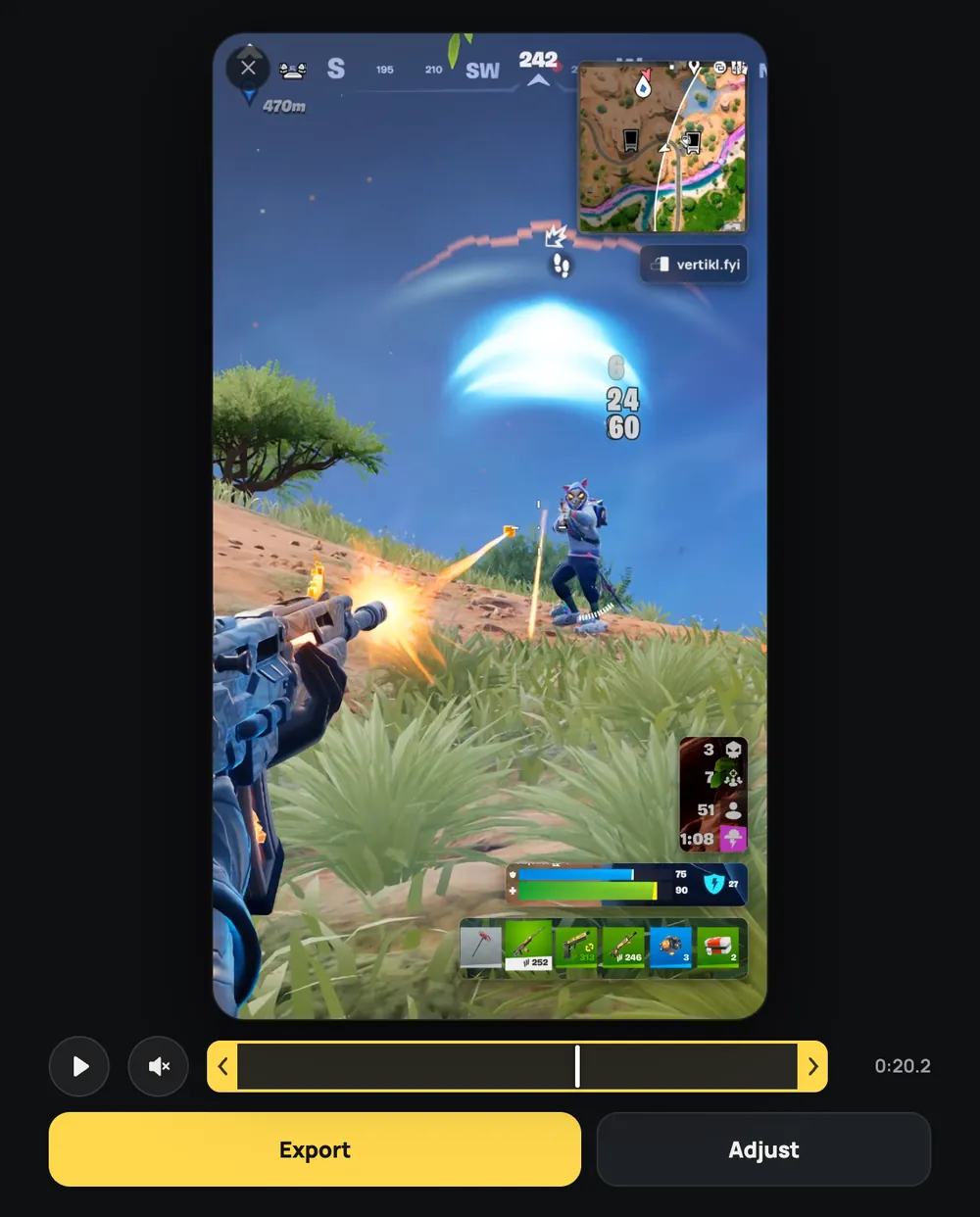
- Check the preview and drag the trim bar to the part you want.
- Select Export, then Download.
- Upload the video at tiktok.com, or send it to your phone and post it there.
Good to know
- Clips can be up to 3 minutes long and up to 500 MB.
- Use an MP4, MOV or MKV file.
- Upload the original wide clip. A clip that is already vertical does not work.
- Videos include a small Vertikl watermark. You can drag it to a new spot.